If this doesn't solve the problem...
- Turn off the printer.
- Remove all media from the tray. Pull out any paper that is visibly stuck.
- Lift the top cover and pull out any paper that may be stuck.
Be careful when you lift the cover not to damage or disturb any of the tubes or other internal parts of the printer.
- Remove the rear path by pressing the buttons on each of its sides and pulling it straight out. If you don't pull it straight out, you may damage the paper sensor.
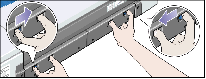
Removing the rear path gives access to the inside of the printer from the rear.
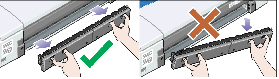
Pull out any paper that may be stuck inside or which is accessible from the rear.
Replace the rear path and make sure it fits securely.
- Turn on the printer.
- We recommend that after clearing a paper jam you align the printheads to avoid problems of poor print quality.
To align printheads, start HP Designjet System Maintenance and select Align printheads; you do not need an internet connection to do this.
See: How do I use HP Designjet System Maintenance?
The problem is bad or poor print quality.