You are here:     printer front panel.

hp home banner


© 2002 Hewlett-Packard Company


Tell me about the front panel

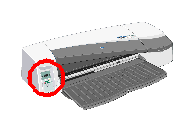
Your printer has a front panel (or control panel) that gives information about the status of the printer, and has keys (or buttons) that let you control printing operations.

front view of printer

The front panel has:

Front panel lights

There are two front-panel lights: Power and Attention

Power

This is a green light.

It is Off when the printer has been powered off.

It flashes while the printer is printing or is being powered off.

Otherwise it is On to indicate that the printer is powered on.

See also Power key.


Attention

This is a yellow light.

It flashes to indicate an error or problem; icons in the front-panel display give more information about the problem.

Otherwise it is Off.

top

Front panel keys

There are three front-panel keys: Power, Cancel and OK

Power

This is the bottom key on the front panel.

It turns the mains power on and off.

The Power (green) light is on when the printer is switched on.

Note that the Power key is a 'soft' switch, and that the printer still has electrical power available to it, even when switched off. To isolate the printer from the mains supply, you must unplug it.


Cancel

This is the upper left key on the front panel.

It cancels the current operation.


OK

This is the upper right key on the front panel.

It indicates to the printer that you have now loaded paper in the appropriate tray or feed, and the printer may start printing.

It can also indicate to the printer that you have corrected a problem--for example, you have removed jammed paper--and that the printer should continue with its activity--for example, it should resume printing.

If you press the OK key while the printer is waiting for the ink to dry, the printer resumes without waiting further. This can be useful to remove large media from the printer before they have completely dried, but you must handle them with due caution.

top

Front panel display area

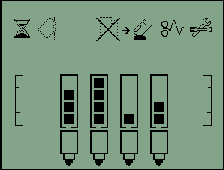
The printer's front panel has a display area that gives information about the printer

  front panel of printer

The diagram on the left shows all the icons that may appear in the display area. Click on an icon for a description of its properties.

The sets of icons in the lower two-thirds of the display area refer respectively to the Black, Cyan, Magenta and Yellow components of the ink system.

top

Busy

  front panel of printer

When flashing: Printing, cancelling job, drying, powering off. This icon also flashes while the printer is measuring the paper for skew before a job is sent for printing using the rear or front sheet feeds.

When off: Printer is powered off, idle or awaiting user action.

top

Paper misaligned

  front panel of printer

When flashing: The paper is misaligned and must be reloaded to print.

    Action: reload the paper.

When off: Normal.

top

Paper status

  front panel of printer

When flashing: Out of paper or paper stalled.

When off: Normal.

top

Press a key

  front panel of printer

When flashing: Printer waiting.

    Action: Press the OK key to indicate that the printer should continue, for example, after you have loaded paper.

    Front-panel keys.

When off: Normal.

top

Paper jam

  front panel of printer

When flashing: Paper jammed, paper stalled or carriage stalled.

When off: Normal.

top

Use System Maintenance

  front panel of printer

When flashing: Hardware error.

When off: Normal.

top

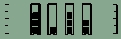
Ink cartridge status

  front panel of printer

(one icon for each ink cartridge)

Each of the icons between the two rulers refers respectively to the Black, Cyan, Magenta and Yellow ink cartridges.

When on: The height of each bar indicates how much ink remains.

When flashing: The cartridge is low on ink or out of ink.

When off: Printer is powered off or is starting up. No cartridges or printheads are shown if any cover is open or the rear path is removed.

top

Printhead status

  front panel of printer

(one icon for each printhead)

When on: Normal.

When flashing: Printhead failure.

When off: Printer is powered off or printhead is being replaced. No cartridges or printheads are shown if any cover is open or the rear path is removed.

top


Web links on this page:

[HP Home] [Designjet Online] [Support] [How to Buy]