You are here: yellow light flashes. Skip navigation bar
© 2002 Hewlett-Packard Company
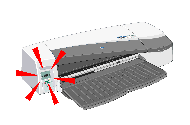
The problem is the yellow light on my printer is flashing
Note that no icons are shown in the front panel if any cover is open or the rear paper path is removed.
If the yellow light on the front panel of the printer is flashing...
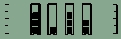
Check the icons displayed on the front panel. The yellow light flashes for one of these reasons:
The Paper Status icon flashes; the printer is out of paper.
How do I load paper?
The Paper Jam icon flashes; paper is jammed.
The trouble is paper is jammed.
The Paper Jam icon is flashing, and the Busy icon is on; the carriage has stalled.
This may be caused by a paper jam.
See The trouble is paper is jammed.
It may be caused by a printhead latch not being securely fastened.
Carefully check How do I replace printheads?
It may be caused by a cable that has become loose inside the printer. If none of the other remedies works, call HP for assistance.
See Tell me about HP Customer Care.
Both the Paper Status and the Paper Jam icons are flashing; the paper has stalled.
One or more of the Printhead Status icons are flashing; the printheads need replacing.
How do I replace printheads?
The Use System Maintenance icon is on; there is a hardware error. Run the System Maintenance tool for the printer:
How do I use HP Designjet System Maintenance?
The Paper misaligned icon is flashing. The paper is misaligned and must be reloaded to print.
All the Ink Cartridge Status icons are flashing; there is an ink cartridge problem.
How do I check all the ink cartridges?
One of the Ink Cartridge icons is flashing; the corresponding cartridge is empty. The last block of the corresponding icon flashes if a cartridge is low on ink.
How do I replace ink cartridges?
Web links on this page:
[HP Home] [Designjet Online] [Support] [How to Buy]